Explore the Newest NexVault Features
We've expanded NexVault with powerful tools to improve SEO, eliminate duplicate media safely, recover background tasks, and give you complete control.
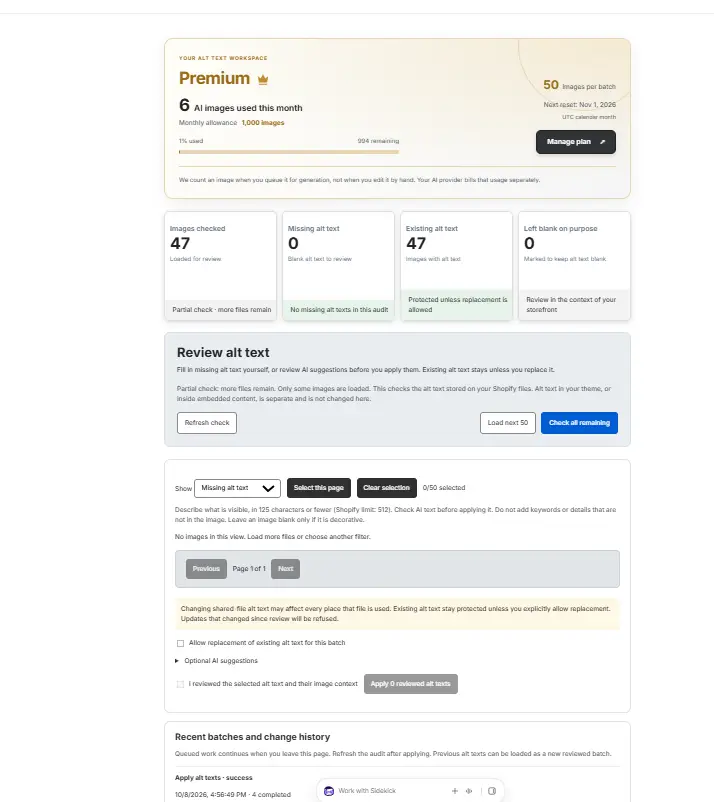
AI & Bulk Alt-Text Workspace
Image alt text is critical for search engine rankings and storefront accessibility. NexVault's new Alt-Text Workspace audits your entire catalog to pinpoint images missing descriptions, allowing you to fill them in manually or let AI generate them in seconds.
Separate images into missing alt text, existing alt text, and those intentionally left blank for decorative purposes.
Generate context-rich, concise alt text adhering to Shopify's recommended 125-character guideline (max 512).
Review 50 images per batch, preview AI suggestions, edit inline if needed, and apply changes in one click.
Existing alt text is protected by default. Toggle "Allow replacement" only when you want to overwrite.
Visual File Compare & Master Selection
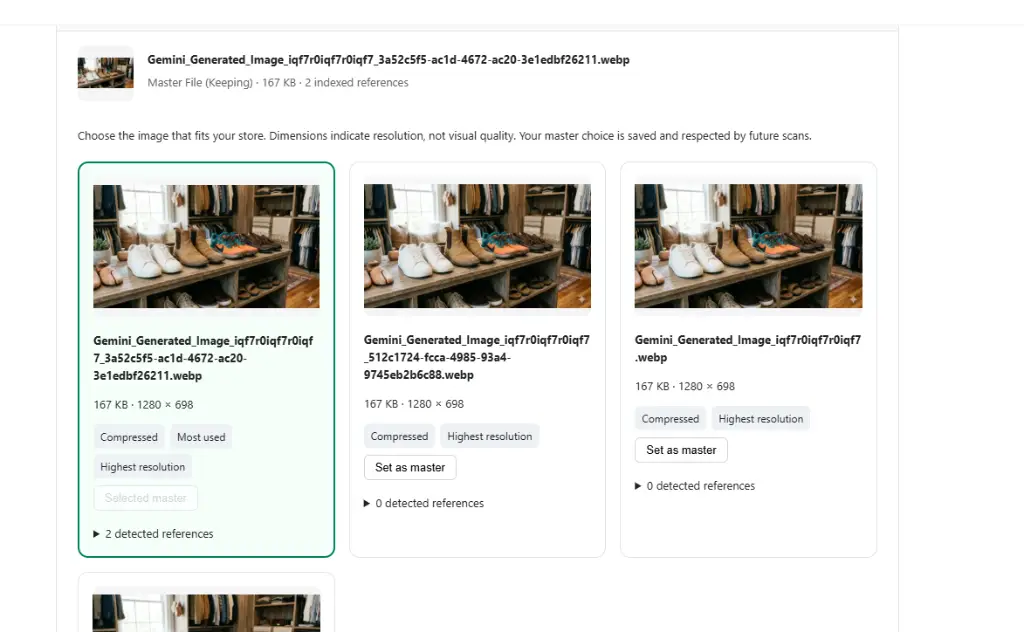
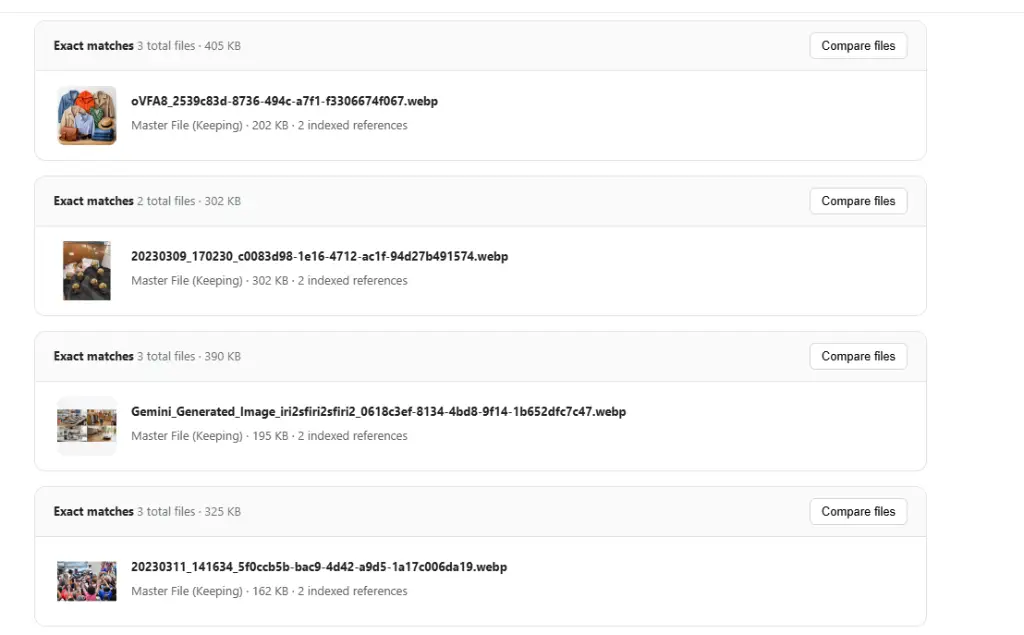
Don't guess which duplicate image to trash. NexVault now features an interactive side-by-side File Compare view that lets you inspect every duplicate version, examine resolution and reference counts, and hand-pick the master copy to keep.
-
Side-by-Side Visual Comparison: View thumbnail cards of all matched files next to each other with exact dimensions (e.g. 1280 × 698) and file sizes.
-
Smart Metadata Tags: Instantly spot files labeled Highest resolution, Compressed, and Most used.
-
Designate Master File: Click "Set as master" on your preferred file. NexVault marks it as Master File (Keeping) and respects this choice in future scans.
-
Reference Protection: View detected product and variant references across copies so redundant files can be trashed without breaking storefront links.
Failed Job Review & Recovery Hub
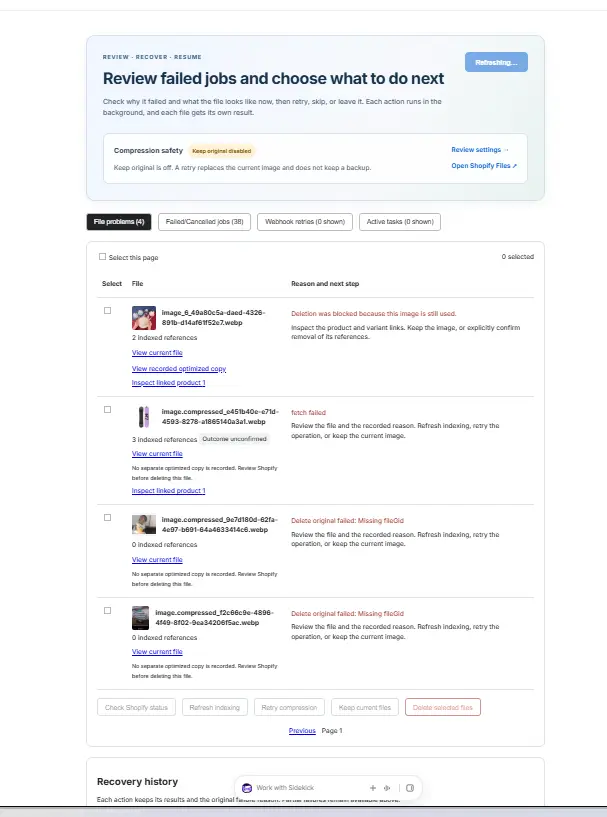
Background operations like bulk compressions, webhook syncs, and deletions should never fail silently. NexVault's "Review • Recover • Resume" page provides full transparency into background tasks, diagnostic reasons, and one-click remediation tools.
Switch easily between File problems, Failed/Cancelled jobs, Webhook retries, and Active tasks.
Understand reasons immediately (e.g. "Deletion was blocked because this image is still used" or "Missing fileGid").
Check Shopify status, refresh indexing, retry compression, keep current files, or safely delete problematic items in bulk.
Every recovery action records its original failure reason and result in your store's persistent Recovery History.
Pause & Resume Background Tasks on Demand
Managing large catalogs with tens of thousands of images shouldn't slow down your store during peak traffic hours or product launches. With NexVault's new Pause & Resume functionality, you are in total control.
Halt duplicate scans or bulk compression queues instantly when you need bandwidth.
Resume from the exact file index without re-scanning or repeating processed assets.
Safeguard Shopify API quotas during flash sales, BFCM events, and catalog updates.