NexVault Documentation

Shopify App • Media Storage Manager • Compression • Cleanup • Duplicates

NexVault helps merchants reclaim storage, optimize media, and keep Shopify files organized. It detects unused/orphaned files, finds duplicates, compresses uploads, and provides safe trash/restore tools.
1. Overview #overview

NexVault is a Shopify media management app designed to reduce storage waste and improve store performance. It provides tools to scan, organize, and optimize your Shopify files while keeping actions safe and reversible.

Supported File Types

  • Images (JPEG, PNG, WebP)
  • Videos
  • Documents (PDF, DOCX, XLSX)

What NexVault Helps You Do

  • Detect unused/orphaned assets and reclaim space
  • Find and remove duplicate media
  • Compress images on upload or in bulk
  • Keep a safe Trash window with restore support
Safe by design: Most destructive actions flow through Trash first, giving you time to restore files if needed.

2. Dashboard #dashboard

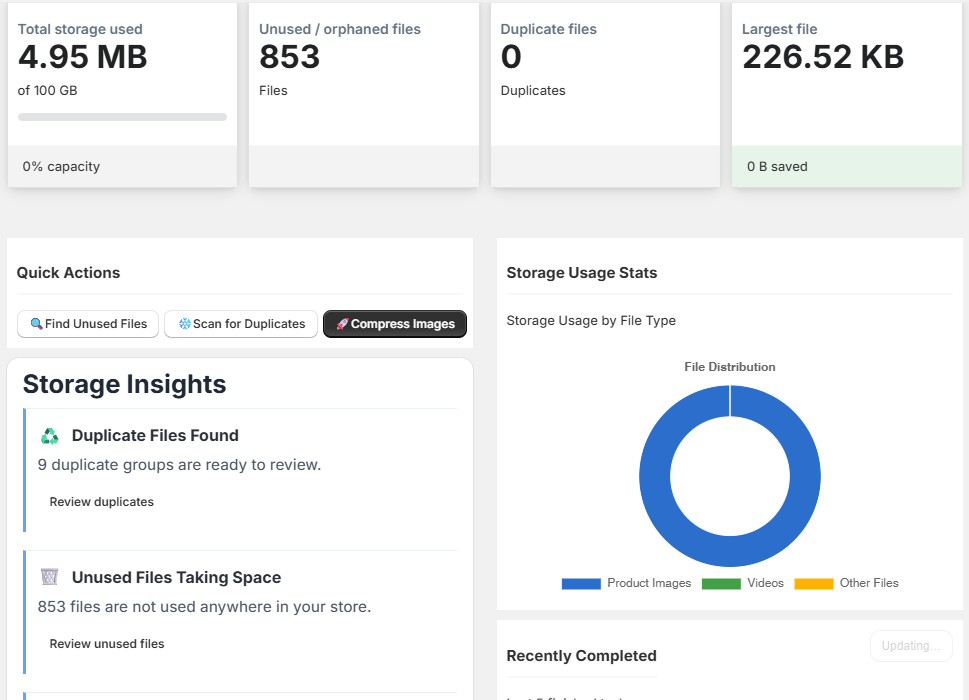
The dashboard is your control center—showing storage usage, unused files, duplicates, and the progress of background scans.

Key Metrics

  • Total Storage Used — overall media storage usage
  • Unused / Orphaned Files — files not referenced anywhere
  • Duplicate Files — duplicate groups detected by the scanner
  • Largest File — the biggest asset currently stored

Media Optimization Score

A quick indicator of how optimized your library is. It can be based on saved storage and/or compression coverage when savings totals are not available.

Score updates as scans finish
Tip: If you don’t see insights yet, run scans (unused files / duplicates) and refresh the dashboard when tasks complete.
NexVault Dashboard showing core Shopify media storage metrics including total size, orphaned assets, and duplicate counts

3. Files Explorer #files-explorer

The Files page lists all managed Shopify media with previews, usage counts, sizes, and status labels. Use it to search, filter, and take action on individual assets.

Column Description
Preview Thumbnail or quick indicator of the file type.
Type Image, video, or document.
Size The file’s size in KB/MB.
Usage How many times the file is referenced (0 often implies orphaned).
Status Used, Orphaned, or Trash.
Open / Actions View, move to trash, restore, or delete permanently (depending on status).
Important: Orphaned means “not referenced”, not necessarily “unimportant”. Review before deleting.
NexVault Files Explorer interface displaying a list of Shopify media assets with their usage status and orphaned file detection

4. Duplicate Finder #duplicates

Duplicate Finder groups identical or near-identical files so you can remove redundant copies. It highlights a “Master file” to keep and lists duplicates that can be deleted.

What Gets Compared

  • Image signatures / hashing (for exact or near matches)
  • File size and metadata (supporting signals)
  • Group-level potential savings

Actions You Can Take

  • Delete Now — remove duplicates immediately
  • Schedule Clean — queue deletion for later
  • Keep Master — preserve the best/primary file
Best approach: Keep the file that is currently referenced, or the highest quality version, as the master.
Duplicate Finder tool in NexVault highlighting identical Shopify media files and letting merchants select a master file to keep

5. Upload & Compression #upload-compression

Upload media through NexVault to automatically optimize images and keep storage clean. You can also configure default compression settings.

Upload Features

  • Drag & drop upload
  • Batch uploads
  • Supports images, videos, and documents
  • Optional automatic compression on upload

Compression Options

  • Quality slider for lossy compression
  • Convert PNG → JPEG (reduces size; removes transparency)
  • Convert to WebP for modern smaller files
  • Resize max width (keeps aspect ratio)
  • Square crop/pad for consistent thumbnails
Tip: If a file is not an image (e.g., PDF), you can open it in a new tab after upload instead of showing an image preview.
NexVault image compression settings showing automatic WebP conversion, resizing, and quality slider for Shopify uploads

6. Cleanup (Orphaned Files) #cleanup

Cleanup helps you reclaim storage by listing orphaned files (unused assets). You can move selected files to Trash or clean all orphaned files.

Orphaned Files Tab

  • Shows all files with usage = 0
  • Select multiple items
  • Move Selected to Trash for safe removal
  • Clean All Orphaned Files for bulk cleanup

Why Orphans Happen

  • Deleted products
  • Updated themes/assets
  • Old versions of images
  • Bulk imports and replacements
Recommendation: Use Trash first. Don’t permanently delete until you confirm nothing breaks on your storefront.

7. Trash / Awaiting Deletion #trash

Files moved to Trash are scheduled for deletion after a retention window (commonly 7 days). During this period, you can restore items or delete them immediately.

Trash Actions

  • Restore — returns file to active library
  • Delete Permanently — removes file immediately

Purge Countdown

Each trashed item shows a purge date or “days left”. This makes cleanup safer and reduces accidental deletion risk.

Permanent deletion is irreversible. If you’re unsure, restore the file and verify your storefront first.
NexVault Trash bin interface showing deleted Shopify files awaiting permanent deletion with options to safely restore assets

8. Settings #settings

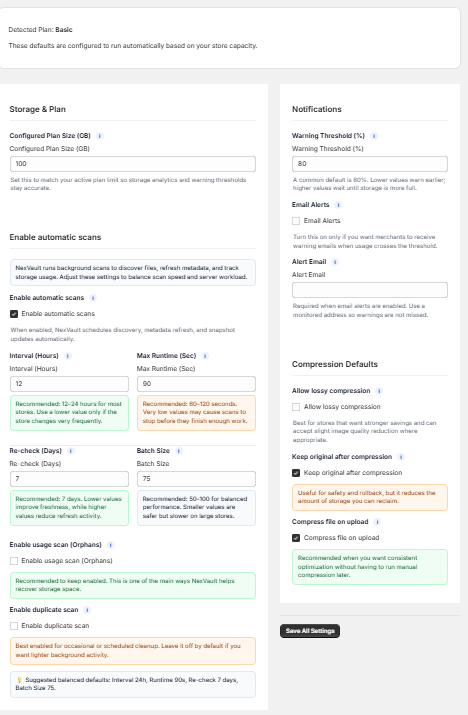
Settings control storage limits, automation schedules, notifications, and default compression behavior.

Storage & Plan

  • Configured plan size (GB)
  • Defaults can be used for automation thresholds

Notifications

  • Warning threshold (%)
  • Email alerts toggle
  • Alert email address

Automatic Scanning

  • Enable automatic scans
  • Interval (hours)
  • Max runtime (seconds)
  • Batch size
  • Re-check (days)
  • Enable usage scan (orphans)
  • Enable duplicate scan

Compression Defaults

  • Allow lossy compression
  • Min file size threshold (MB)
  • Keep original after compression
  • Compress file on upload
NexVault full settings overview including notification preferences, automatic scans, and automated Shopify storage optimization
NexVault storage threshold settings to trigger email alerts when Shopify media size limits are reached Advanced NexVault configuration showing automatic backup, image conversion toggles, and duplicate scan sensitivity
Tip: Start with conservative settings (higher quality, smaller batch sizes) and adjust as you gain confidence.

9. Automatic Scanning #auto-scanning

NexVault can run background scans that keep your library up-to-date without manual effort. These scans detect orphans, duplicates, and update storage stats over time.

Typical Scan Types

  • Usage scan (orphan detection)
  • Duplicate scan (grouping)
  • Size measurement and snapshot refresh
How it feels in the app: Scans show up under Active Tasks with progress. Results populate insights and lists.

10. Storage Insights #insights

Storage Insights highlight actionable opportunities when NexVault detects “worth showing” items—like large files, duplicates ready for review, or compressible groups.

Examples of Insights

  • Large files above a threshold (e.g., 50MB, 100MB)
  • Duplicate groups discovered
  • Potential savings from compression

Why It Matters

  • Lower storage usage
  • Cleaner media library
  • Potential performance improvement
Good UX pattern: show insights only when there’s a meaningful recommendation, otherwise keep the dashboard clean.

11. Active Tasks #active-tasks

Active Tasks provides real-time visibility into ongoing background jobs—like scanning duplicates or building snapshots.

What You’ll See

  • Task name (e.g., “Scanning duplicates”)
  • Status: running / completed / failed
  • Progress percentage
  • Duration and completion badges
Tip: If a scan is running, wait for it to finish and then refresh to see updated stats and insights.

12. Best Practices #best-practices

Recommended Workflow

  1. Enable automatic compression for uploads.
  2. Run orphan scan weekly (or daily for busy stores).
  3. Run duplicate scan periodically.
  4. Move candidates to Trash, monitor store, then purge.

Safe Cleanup Rules

  • Prefer Trash over immediate deletion.
  • Keep masters that are currently referenced.
  • Review “Largest file” and oversized assets first.
  • Use insights to focus on the highest impact wins.
Storefront check: After cleanup, spot-check product pages, theme sections, and any custom landing pages that reference media.

FAQ #faq

Why do I have so many orphaned files?

Orphans commonly accumulate after deleting products, replacing images, switching themes, or importing media in bulk.

Does deleting a file remove it immediately?

By default, files are moved to Trash first and deleted after a retention window. You can delete permanently if needed.

What does “Optimization Score” mean?

It represents your overall optimization health—based on compression coverage and/or total storage saved when available.

Support #support

If you need help troubleshooting scans, compression settings, or cleanup behavior, use the in-app Support section.

Helpful details to include when requesting support: current page, what action you clicked, approximate time, and the task name shown in Active Tasks.